Available Number of Questions: Maximum of
80 Questions
Exam Name: SAP Certified Associate - SAP SuccessFactors People Analytics: Reporting
Exam Duration: 180 Minutes
Related Certification(s):
SAP Certified Associate, SAP SuccessFactors People Analytics: Reporting Certifications
SAP C_THR92_2505 Exam Topics - You’ll Be Tested in Actual Exam
The SAP C_THR92_2505 exam covers a wide range of topics, providing a comprehensive understanding of Employee Central, a cloud-based Human Capital Management (HCM) solution. It delves into the core functionalities of this system, which include managing employee data, ensuring data security, and facilitating efficient processes. You'll explore how Employee Central integrates with other SAP solutions, such as SuccessFactors, to enhance HR operations. The exam also focuses on personnel administration, covering topics like organizational management, employee lifecycle management, and the configuration of employee self-service features. Additionally, it emphasizes the importance of data consistency and data migration, ensuring accurate and up-to-date information. Another key area is the implementation of Employee Central, where you'll learn about the planning, execution, and post-go-live support processes. The exam also delves into the technical aspects, including the integration of Employee Central with other SAP and non-SAP systems, and the utilization of SAP Fiori apps for a seamless user experience. Lastly, it touches on the future of Employee Central, exploring its potential for further development and innovation in the field of HCM.
SAP C_THR92_2505 Exam Short Quiz
Attempt this SAP C_THR92_2505 exam quiz to self-assess your preparation for the actual SAP Certified Associate - SAP SuccessFactors People Analytics: Reporting exam. CertBoosters also provides premium SAP C_THR92_2505 exam questions to pass the SAP Certified Associate - SAP SuccessFactors People Analytics: Reporting exam in the shortest possible time. Be sure to try our free practice exam software for the SAP C_THR92_2505 exam.
1of 0 questions |
SAP C_THR92_2505 Exam Quiz
✓ 0 answered
🔖 0 bookmarked
SAPC_THR92_2505
Q1:
Where can you obtain the latest versions of the standard canvas report templates provided by SAP SuccessFactors?
○
ASAP Support Portal
○
BSAP SuccessFactors HCM Cloud Operations Portal
○
CSAP PartnerEdge
○
DSAP Help Portal
SAPC_THR92_2505
Q2:
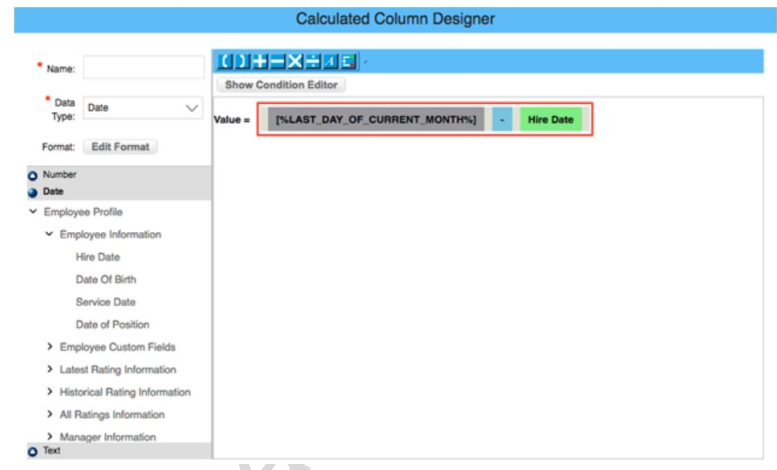
You are creating a calculated column to calculate an employee's organizational tenure. Why does the formula in the screenshot result in an error?
○
AAn incorrect dynamic date variable has been used.
○
BAn 'if then else' statement needs to be included.
○
CThe result of the formula is negative.
○
DAn incorrect data type has been selected.
SAPC_THR92_2505
Q3:
When you format a list report component, which actions can you perform? Note: There are 3 correct answers to this question.
☐
AChange the order of columns.
☐
BChange column types.
☐
CAdjust column widths.
☐
DChange column headers.
☐
ESave formats to a template.
SAPC_THR92_2505
Q4:
In the Advanced Reporting tool, you want to create a query that includes the employee's matrix manager. When you configure the table join with the Job Relationships table, the Results tab displays multiple rows per employee that also include relationships to HR managers and second managers. How do you configure the query to return one row per employee that shows the employee's matrix manager, when assigned?
○
AChange the Job Relationship join to an inner join.
○
BChange the Job Relationship to include a table restriction.
○
CChange the Job Relationship join to a right join.
○
DChange the Job Relationship join to a left join.
SAPC_THR92_2505
Q5:
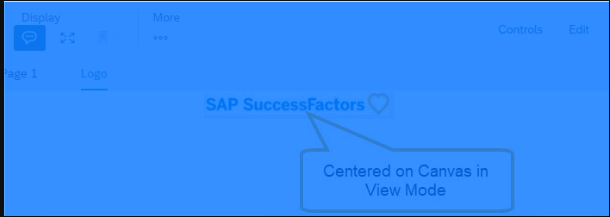
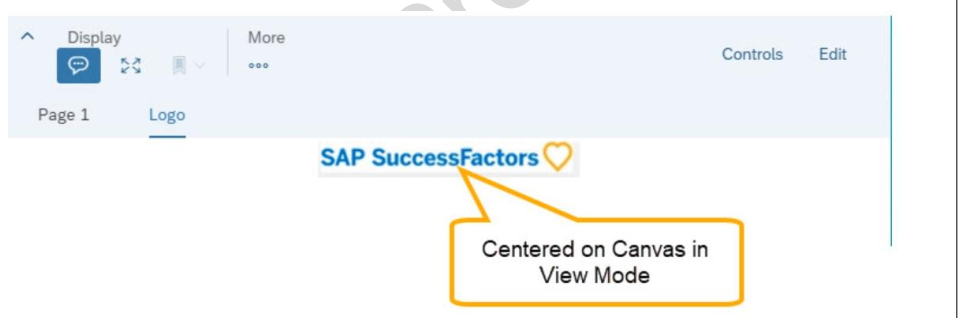
You are configuring a story report. You add the image widget to the top-left corner of the canvas. You then upload the SAP SuccessFactors logo in the Builder, and select the logo image so it displays on the canvas. When you preview the report in View Mode, the logo appears centered on the canvas. What action do you take so the Logo appears in the top-left corner when viewing the report in View Mode?
○
AIn Styling for the page, set the Page Size to Fixed.
○
BIn Builder for the image, set the image to Dynamic.
○
CIn Designer Mode, add another widget under the image.
○
DIn Styling for the image, set the Image Properties to Pan.